YouTube's native captions average around 70–85% accuracy, while AI tools such as Whisper large-v3 can reach 90–94% on tested videos, making a hybrid workflow the most reliable approach. Use YouTube for instant access, then switch to an AI YouTube transcript generator when you need clean files, timestamps, speaker labels, or dependable source material.
You've probably been there. You open a long video to find one quote, click through the description, copy a transcript panel, and end up with a dense block of text that still needs correction. It may be enough for a quick search, but it isn't ready for a blog post, subtitle file, SEO audit, research database, or AI pipeline.
The actual job isn't merely getting words out of a video. It's turning spoken language into structured, searchable material that people and software can use. That requires choosing the right extraction method, checking audio conditions, preserving timestamps, identifying speakers, cleaning filler, and exporting the result in a format that fits the next task.
The Hidden Complexity of YouTube Transcription
A useful phrase appears in an interview, a tutorial explains a process, or a product video contains details you need in a document. You open YouTube's transcript panel, search for the wording, and expect the task to be finished.
That works for quick reference. The workflow changes when the transcript feeds a blog post, SEO brief, research database, subtitle file, or AI content pipeline. Native text can include recognition errors, uneven punctuation, missing speaker changes, and caption fragments that paste poorly into another tool. Readable inside YouTube does not mean ready for publishing or structured analysis.
A transcript is an intermediate asset
The first extraction is a source file rather than a finished deliverable. A researcher may need searchable plain text. An editor needs time-synced captions. An SEO specialist needs clean paragraphs, topic labels, and links to specific moments in the video. A product team may need structured segments for retrieval-augmented generation, or RAG.
Getting the words is only the first handoff. Turning them into usable SEO assets, research data, or repurposable content requires post-processing that copy-and-paste cannot provide:
- Verification: Check names, product terms, figures, acronyms, and quotations against the audio.
- Segmentation: Group caption fragments into meaningful sections for articles, briefs, or searchable records.
- Attribution: Mark speaker turns in interviews, panels, and calls.
- Timestamp preservation: Keep time references for editing, citations, source checks, and video navigation.
- Output selection: Choose TXT, Markdown, SRT, VTT, or JSON according to the next system that will consume the file.
YouTube's history shows why transcript workflows became important at scale. Auto-captioning launched in 2009, opened to all users by March 2010, and supported translation into 50 languages at that stage, according to Google's announcement about YouTube automatic captions. By November 2012, YouTube said automatic captions supported 10 languages, around 72 hours of video were uploaded every minute, and approximately 200 million videos had automatic or human-created captions.
The practical takeaway is clear. Captions make video searchable and accessible, while formatting and review determine whether the transcript can support the next task. A good YouTube transcript generator closes the gap between speech recognition and workflow-ready content.
Extracting Native YouTube Captions for Quick Access
You need to verify one sentence from a long interview before publishing. YouTube's built-in transcript viewer is usually the fastest place to start. It is free, requires no separate account, and connects each transcript segment to its position in the video. For a phrase check or a quick read of the topic, the native interface often does the job without another tool.
The native extraction process
On desktop, open the video and expand the description below the player. Select Show transcript in the transcript area. A panel should appear beside the video, with caption segments displayed alongside their timestamps.
Search the panel for a phrase, then click the matching segment to move the player to that point. This is quicker than scrubbing through the timeline, particularly for a name, definition, product term, or answer buried in a long recording.
For a plain-text copy, open the transcript panel menu and disable timestamps if you do not need them. Select the visible text and copy it into a document. Keep timestamps when reviewing evidence or planning edits. They tie each passage to the original moment, which makes audio checks faster.
When this method is enough
Native captions work well in a few practical situations:
- You need a quote check: Find the passage in the timestamped panel, then listen to the original audio before publishing the quotation.
- You're doing quick research: Search for terminology, names, recurring topics, or answers to specific questions.
- You want a rough outline: Scan the transcript to judge whether the video deserves further processing.
- You're working with a captioned video: The built-in viewer depends on a usable caption track being available.
A dedicated YouTube transcript downloader is more useful when the transcript must be exported repeatedly for briefs, keyword research, SEO drafts, or content repurposing. The difference is workflow control. A browser panel helps you find text, while an export gives the next tool or editor a file to process.
Why professionals outgrow the panel
The native viewer is a reading interface, not a production workspace. Copied text commonly loses the structure needed by an editor, CMS, subtitle application, or research database. It also leaves the larger workflow gap unresolved: obtaining words is easy, but turning them into searchable research data, SEO-ready sections, or reusable content still requires cleanup and formatting after export.
Missing captions create a separate limitation. If a video has no usable caption track, the viewer cannot generate one from the audio. A transcription system that processes the audio directly is then required.
YouTube has continued to treat captions as a core viewing feature. It still supports both creator-uploaded and auto-generated captions, along with viewer controls for caption appearance. That makes native captions useful for quick access and source checking. It does not make the transcript panel a complete export or post-processing system.
Comparing Native Tools vs AI-Powered Generators
The choice between native extraction and an AI transcription service depends on what failure you can tolerate. For a quick search, a rough transcript may be perfectly acceptable. For subtitles, legal review, technical documentation, or repurposed content, an error in a product name or instruction can create expensive rework.
A useful independent test compared YouTube auto-captions with Whisper large-v3 across 10 videos, using human-corrected reference transcripts and Word Error Rate, or WER. The human correction process averaged about 30 minutes per video. The test reported average accuracy of 78% for YouTube auto-captions and 94% for Whisper large-v3, with YouTube ranging from 68–78% on outdoor vlog, heavy-accent, and technical-jargon videos, while Whisper ranged from 90–94% on those examples, as documented in the YouTube transcription benchmark.
A practical decision table
| Requirement | Native YouTube captions | AI-powered generator |
|---|---|---|
| Quick phrase lookup | Strong fit | Usually unnecessary |
| No-caption video | Not available through the native viewer | Often possible through direct audio transcription |
| Clean TXT or Markdown | Requires copying and cleanup | Commonly available as an export |
| SRT or VTT workflow | Limited inside the viewer | Designed for subtitle outputs |
| Speaker labels | Usually absent or limited | Available in tools that support diarization |
| Technical vocabulary | Needs careful review | Better with model selection and glossary support |
| API or batch processing | Not the natural workflow | Better suited to structured automation |
| Review cost | Low initial effort, higher cleanup | Higher tool dependency, lower manual formatting work |
The audio itself controls much of the result. A clean studio recording can produce a useful draft from either approach, but noise, crosstalk, accents, and specialist language widen the gap. One production-focused analysis reports ranges of 92–96% for clear studio audio, 85–92% for conversational speech with minor noise, 75–85% for overlapping speakers, and 60–78% for heavy accents, technical jargon, or poor audio. Those ranges are reported in this comparison of YouTube auto-captions and AI transcription.
Practical rule: Choose the cheapest extraction method that still leaves you with an acceptable review burden. Don't pay for advanced processing when you only need to find one sentence, and don't use a rough caption dump as final copy for high-stakes content.
For a simple browser workflow, native captions or a free extractor can be enough. For production work, a dedicated service such as Blitzcut AI captions and video transcription is more appropriate when you need caption files, timestamps, or editing-oriented output. The strongest process is often hybrid: extract quickly, compare or regenerate when the audio is difficult, then manually verify the sections that matter.
How Scribiz Can Help
Scribiz is useful when the task goes beyond speech-to-text. It works as a web and Mac tool for extracting context from video and audio, including transcripts, on-screen text, summaries, and chapter lists. That broader scope matters for tutorials, lectures, product demos, and screen recordings where the spoken track doesn't contain the whole meaning.
Paste a YouTube link, select an appropriate processing mode, and review the generated transcript. Scribiz can work when captions are absent by listening to the audio, and it can skip a low-quality caption track rather than treating it as authoritative. For interviews and recordings with two distinct voices, speaker labeling can make the cleanup pass much faster.
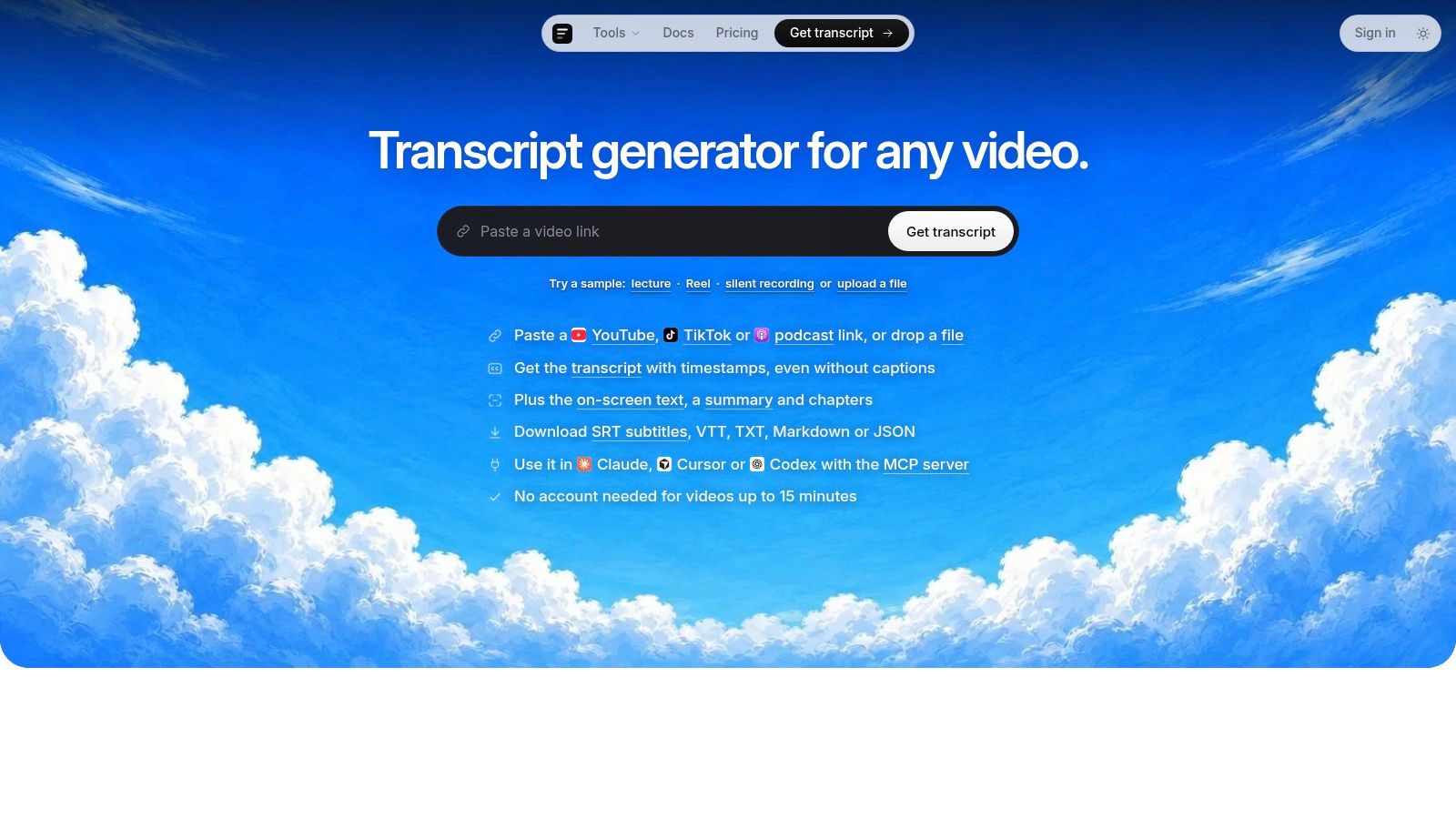
Export for the next task
Choose the output before you process the video:
- Use TXT when you need a clean reading copy or want to paste text into a document.
- Use Markdown for notes, editorial drafts, and knowledge bases.
- Use SRT or VTT when an editor or video platform needs synchronized subtitles.
- Use JSON when an application needs timestamps, segments, metadata, or machine-readable fields.
Scribiz also supports audio and video uploads, direct media links, podcast feeds, and integrations through its API, CLI, and MCP server. The Mac app can reduce the need to upload full media, which may be preferable for sensitive recordings. Results expire according to the service's retention settings, so export anything you need to keep as part of the job rather than treating the workspace as permanent storage.
For a focused walkthrough of the link-based workflow, see generate YouTube transcripts with Scribiz. It's the right choice when you need one place to generate, inspect, summarize, chapter, and export video context. It's less compelling if all you need is a quick phrase lookup inside YouTube.
Formatting and Exporting Clean SRT and TXT Files
Raw transcript text is useful for reading. It isn't automatically useful for editing, publishing, or retrieval. The format should reflect the destination, because a subtitle editor needs timing while an SEO brief needs readable paragraphs and stable topic boundaries.
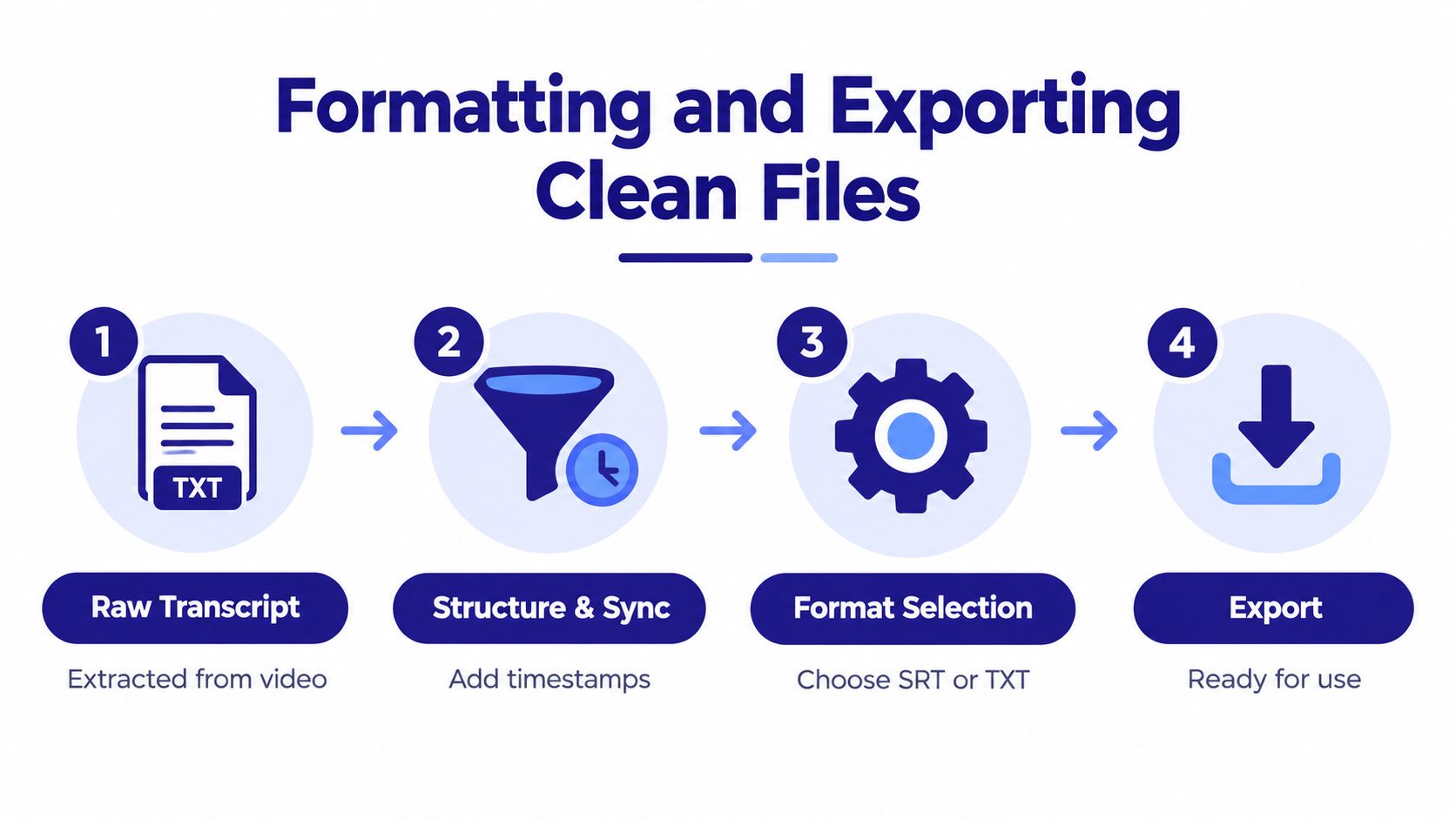
Start with a source-preserving version
Keep an untouched copy of the first transcript. Don't overwrite it with cleaned prose. The original gives you a reference when an editor questions a phrase, when a subtitle needs to be retimed, or when an AI-generated summary makes an unsupported claim.
Create a working copy and apply a consistent naming pattern that includes the video identifier, language, and output type. Then separate the transcript into logical blocks. A useful block may represent a question and answer, a tutorial step, a product feature, or a change in topic.
For TXT or Markdown, remove caption fragments that break sentences across arbitrary lines. Preserve paragraph breaks where the speaker changes subject, and keep timestamps in a separate field or heading if the transcript will support citations.
Build reliable subtitle files
SRT files depend on three elements: a sequence number, a start and end time, and the text displayed during that interval. VTT follows a related caption structure but supports additional web-caption features. You don't need to hand-code every file if your generator exports these formats, but you still need to inspect synchronization and readability.
Use this cleanup sequence:
- Check timing: Make sure a caption appears when the words are spoken and disappears before the next idea begins.
- Split dense captions: Break long speech into readable units instead of forcing viewers to scan a wall of text.
- Correct names: Verify people, brands, products, commands, and specialist vocabulary against the audio or on-screen source.
- Mark speakers: Use consistent labels such as Speaker 1 and Speaker 2 when the file will support interviews or analysis.
- Remove noise cues selectively: Delete repeated tags such as music or applause when they don't add meaning, but retain relevant sound information when accessibility requires it.
- Export separately: Keep SRT or VTT for video workflows and TXT or Markdown for editorial and research workflows.
A clean subtitle file is not the same as a polished article. Subtitles should preserve spoken meaning and timing. An SEO draft can remove false starts, group related explanations, and add headings, but it should never change the speaker's claim without notice.
Leveraging Transcripts for SEO and Content Repurposing
A transcript becomes valuable when you tag it before asking anyone to rewrite it. The spoken words contain potential topics, questions, examples, objections, product terms, and explanations, but those elements are mixed together in chronological order.
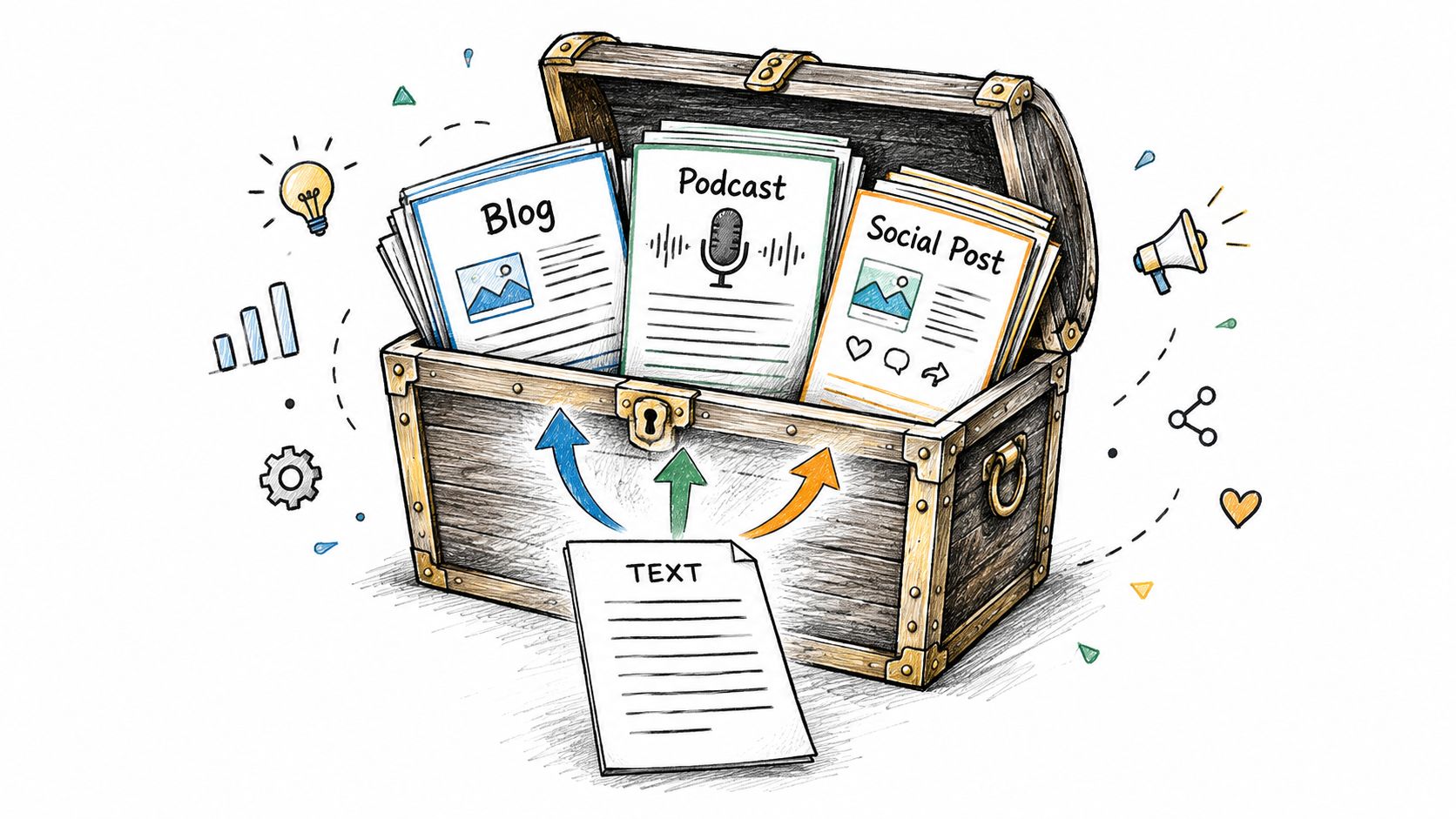
Turn chronological text into searchable units
Split the transcript into segments that can stand on their own. Add a timestamp, speaker, topic label, and content type to each segment. Content type might be definition, process, example, objection, customer question, or source quotation.
That structure supports several outputs without forcing an AI tool to rediscover the video's organization:
- Blog outline: Group related segments into an introduction, problem, process, examples, and conclusion.
- FAQ content: Extract direct questions and answer them using the corresponding timestamped passages.
- Social snippets: Select complete ideas that make sense without several minutes of missing context.
- Video descriptions: Use the chapter list and topic labels to write navigational copy.
- Research notes: Preserve exact wording, speaker identity, and source time for later verification.
- RAG input: Store chunks with metadata so a retrieval system can return the relevant passage instead of an entire transcript.
Don't treat every spoken keyword as an SEO target. People repeat terms naturally, use filler, and wander between subjects. Compare the transcript with the page's actual search intent, then select concepts that deserve a dedicated section or supporting asset.
Here's a useful workflow for content teams:
- Generate a timestamped transcript.
- Correct names and domain terminology.
- Divide the text by topic rather than by equal character count.
- Label each segment with audience, intent, and confidence.
- Create the article outline from validated segments.
- Draft from the transcript, then fact-check against the video.
- Link every published claim to the relevant video moment internally.
The same source can support an article, newsletter, short-form script, and knowledge-base entry, but each format needs a different edit. A transcript preserves speech. An article needs hierarchy and context. A social post needs one clear idea. A RAG chunk needs precise metadata and boundaries.
The free AI video-to-text transcription tool can help with the extraction stage, but extraction alone won't create trustworthy SEO assets. The review and tagging steps determine whether the output is reusable or just another unstructured text file.
For screen-heavy videos, spoken words aren't the full source. Slides, code, charts, and interface labels can contain the exact terms your audience needs. A tool that captures on-screen text with timestamps can produce richer research notes than speech transcription alone, but visual extraction still needs human review when text is small, animated, or partially obscured.
Troubleshooting Common Accuracy and Audio Issues
A transcript can fail even when the tool is configured correctly. The recording may contain music under the speaker, room echo, clipped words, rapid turn-taking, or a microphone placed too far away. Diagnose the audio before blaming the generator.
Match the cleanup to the failure
Overlapping speakers create blended words and incorrect attribution. If two people talk at once, separate the voices where possible, review each turn against the audio, and don't trust speaker labels at points of interruption.
Technical jargon produces plausible but wrong substitutions. Build a correction list before the final pass. Include product names, acronyms, people, locations, and industry terms, then search the transcript for likely variants.
Accents and background noise require a stricter review threshold. One independent guide reports YouTube auto-generated subtitles at roughly 70–85% accuracy for clear English audio, with performance varying according to noise, accents, technical terminology, and overlapping dialogue, as described in this guide to downloading YouTube subtitles.
Poor microphone placement often causes missing word endings and inconsistent volume. If you control the source file, improve the audio before transcription by reducing background noise, balancing levels, and isolating speech. If you only have a public link, mark uncertain passages for listening review rather than trying to infer them from context.
Review the risky passages first: Names, numbers, instructions, legal language, and product claims deserve direct comparison with the original audio, even when the surrounding transcript looks clean.
A solo creator can use native captions for discovery, an AI generator for the working draft, and a final listening pass before publishing. An editor should export SRT or VTT, inspect timing, and verify speaker turns. A research team should preserve the source transcript, store timestamps, and separate extracted facts from interpretation. A product team feeding a RAG system should add metadata and reject low-confidence segments instead of indexing everything blindly.
Building Your Final Transcription Workflow
A dependable workflow has two tracks. The first optimizes speed for finding and reviewing information. The second optimizes quality for assets that other people or systems will rely on.
A practical sequence
- Inspect the video: Check whether captions exist and listen briefly for noise, accents, jargon, and multiple speakers.
- Use native captions for triage: Search the built-in transcript when you only need a phrase or a rough overview.
- Generate a working transcript: Use an AI YouTube transcript generator when captions are absent, difficult to export, or too error-prone for the task.
- Preserve timestamps: Keep them for editing, citations, chapter navigation, and structured research.
- Clean the risky terms: Verify names, brands, jargon, instructions, and any claim that will appear in published content.
- Choose the output: Export TXT or Markdown for writing, SRT or VTT for subtitles, and JSON for applications or data pipelines.
- Create downstream assets: Build outlines, FAQs, clips, summaries, research chunks, or knowledge-base entries only after the source text passes review.
- Archive the right files: Keep the original transcript, the corrected master, and the derivative outputs separately.
The best tool is the one that fits the next handoff. Native YouTube captions are excellent for immediate navigation. AI tools are better for audio without captions, structured exports, speaker separation, and repeatable processing. Human review remains necessary whenever a wrong word could change the meaning.
Treat transcription as a content production stage, not a button press. Start with a video you already need to analyze, run it through this workflow, and export both a cleaned TXT or Markdown version and a time-synced SRT or VTT file. If you're evaluating AI products or preparing a launch, publish the finished tool or workflow on EarlyHunt to put it in front of founders, marketers, and early adopters actively looking for practical software.